 COME
COMECOME Opens but Content Will Not Load
When COME opens but content stays unavailable, the next check is the app’s connection state. A new file download is not automatically the appropriate response.
Compare the scope of the failure
Load an ordinary webpage on the same connection. If that also fails, investigate device connectivity. If other pages work, record what COME displays and whether the failure affects one view or the entire app.
Use one controlled connection change
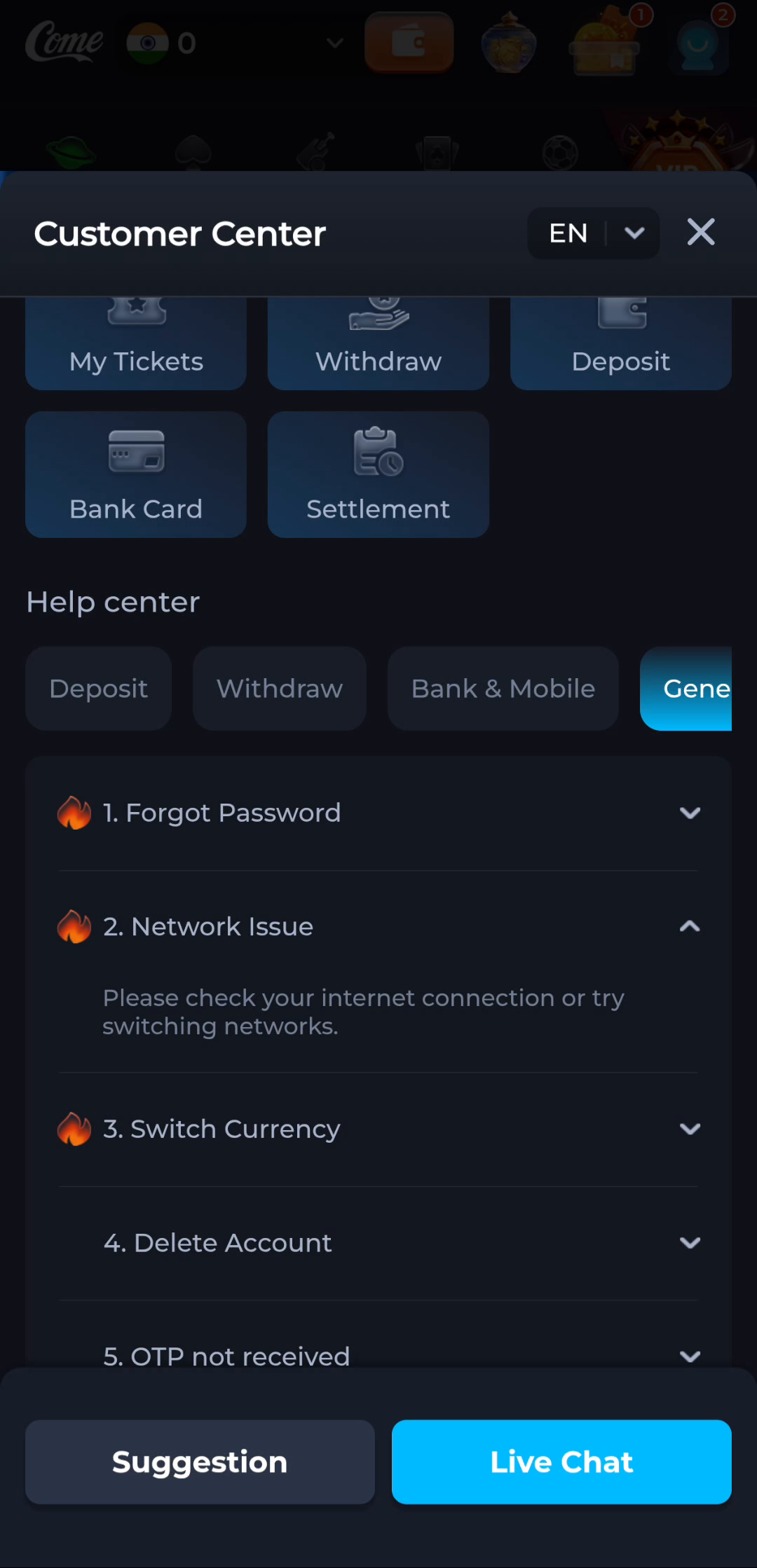
The Network Issue topic suggests checking the internet connection or switching networks. If you have another normal network available, compare the behaviour once and note the result. A successful comparison is useful information, not proof of the underlying cause.
Keep the installed state stable
Do not clear data or log out merely to test content loading. Preserve recovery access and the exact message. If the issue persists, use the current service’s help route with the app stage, time and connection comparison.
A useful next step
Use the download route only when a package change is actually needed. Otherwise continue with the app’s connection help and preserve the working installation.